
All instructions for supported video players are listed there.
If you see that some instruction is outdated feel free to contact us!
By design, SVP 4 should work fine out of the box, however there is always a possibility that something will go wrong because many complex software products are involved. Here’s your to-do list to use in such case:
- Don’t panic!
- Try to turn it off and then turn it on 😉
- Make sure that both SVP and the video player are NOT running with administrator privileges.
- Read (or reread) the topic on configuring your video player and follow the exact steps from the topic.
- Read all the answers below.
- Search through our forums, there’s a good chance (up to 99% ;)) that your problem has already been solved.
- Contact our support service, preferably via Information -> Send problem report window.
- Start a new forum thread.
This feature is called “outer lighting”, and we love it! If you don’t – feel free to turn it off via main menu -> Outer lighting -> Disabled.
All video players supported by SVP can only show unprotected content.
This means you must decrypt the disc before opening it in MPC-HC or any other player.
DO NOT install “codec packs”, they are almost useless now because all major video players already contain all the required codecs (mostly via LAV Filters).
Interpolating a video with high frame rate can be a very CPU consuming task, because 60->120 fps conversion requires twice as many resources as a 30->120 conversion.
Because of this, SVP has a built-in limiter for the source frame rate to be processed. To override it, switch to Ignore HFR sources profile on the Video profiles page and set the desired frame rate limit value.
SVP can’t handle interlaced video. To process interlaced video with SVP you must de-interlace it first i.e. convert the source to progressive video stream with, depending on the de-interlacing method, either source or doubled frame rate.
Let’s take a look at LAV Video decoder options as an example: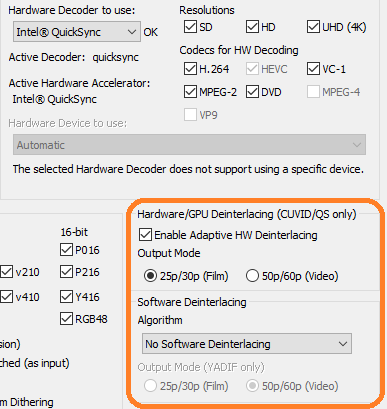
You can choose between:
- 25p/30p (Film) mode – in this case you need to uncheck Assume double frame rate for interlaced videos in SVP’s Application settings;
- 50p/60p (Video) mode – you’ll get “native” 60 fps video that does not need to be processed by SVP.
As DVDs often contain interlaced video – see the previous answer.
In Windows SVP is able to detect a video playback only if both SVP Manager and the video player were started by the same user account. Particularly, you should not run SVP Manager “as administrator”. The following line at the very beginning of SVP’s Events log should give you a hint that something is wrong:
18:15:42.553 [I]: Main: running as Administrator
HDR topic is so complicated we had to create a separate page to describe all aspects: see 4K/HDR with SVP.
The short version: MPC-HC + Avisynth (Vapoursynth) Filter (AVSF) + MPC Video Renderer is the best choice for HDR playback.
For example, SVP could activate for FLAC files with embedded cover, which is not needed. The simple solution is using video profiles: create new video profile, disable “Increase frame rate” and additionally press the red “Disable SVP completely” button, add profile condition like “Video codec” = “mjpeg”, or “File extension” = “flac”, or something like that.
DO NOT USE ffdshow filters anymore! They’re bad and old. Replace ffdshow with Avisynth Filter or Vapoursynth Filter immediately!
There’re several frame interpolation methods in SVP.
“Generic” one works on almost any hardware released in the past 10 years, however for 4K+ playback it’s recommended to have a NVIDIA card and enable hardware “Optical Flow” feature.
Modern RIFE AI interpolation engine wants a decent video card. More info there.
Most likely SVP already chooses the “best settings” based on your hardware’s performance level. If the CPU load is above 70% you may adjust the “quality-performance” slider manually.
Do not try to max-out blindly all the manual options unless you know what every value means. If you attempt to do so you’ll end with very high system load plus high level of artifacts and low video fluidity.
Modern laptops are thin and beautiful, that’s why they cannot cope with continuous high system load, especially when both CPU and GPU are loaded. The main problem is CPU/GPU overheating resulting in thermal throttling.
Another problem is laptop performance while on AC / battery saver mode.
You can monitor the CPU’s temperature and real-time CPU frequency while playing a video. If you see that temperature is rising and CPU frequency is not stable or just too low – then you’ve got a problem.
You need a Pro (or Mac, Linux) version to do this.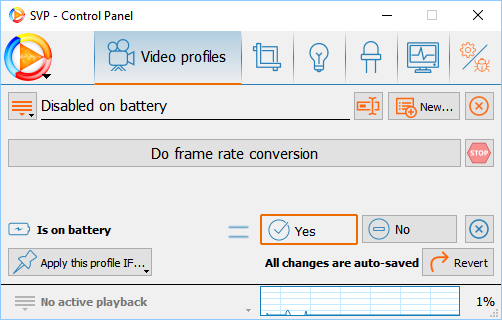
- Add new video profile,
- Add profile condition: “Is on battery” = “Yes”,
- Turn off “Do frame rate conversion” button.
- If you have NVIDIA video card: switch to NVIDIA CUVID video decoder in LAV Video Decoder properties.
- Switch to madVR video renderer, the default “Enhanced video renderer” (EVR-CP) often can’t render more than 110 frames per second.