

4K/HDR with SVP
4K performance tips
- Use 64-bit video players only, ensure you have at least 8 GB of RAM installed
- 4K/HEVC-compatible hardware decoder is essential (except for VLC, see below!)
- Enable full hardware acceleration via NVIDIA Optical Flow on compatible cards (Turing and later)
- mpv or VLC: turn off SVP menu → Application settings → Additional options → Allow output in 10-bit color depth to save CPU power
- VLC only: turn OFF (!!!) hardware video decoder, or just run VLC via SVP's main menu
HDR playback
The best choice for HDR playback with SVP is: DirectShow player (MPC-HC) + Avisynth (Vapoursynth) Filter (AVSF) + MPC Video Renderer
madVR renderer will also work.
Dolby Vision support
Correct DoVi playback is only supported in:
- A DirectShow player (MPC-HC) + Avisynth (Vapoursynth) Filter + MPC Video Renderer,
- SVP’s pre-built mpv.
IINA 1.3.1+ supports HDR playback on HDR screens:
- macOS → System settings → Displays → High Dynamic Range = ON
- IINA → Settings → Video/Audio → Enable HDR support = ON
mpv also supports HDR since 0.40:
- macOS → System settings → Displays → High Dynamic Range = ON
- Add target-colorspace-hint option into mpv.conf
- It’s not recommended using target-colorspace-hint with HDR turned off in display settings
Playing HDR video on HDR display
- Avisynth Filter (or Vapoursynth Filter) + MPC Video Renderer is the best choice.
- mpv player can playback HDR in vo=gpu + gpu-api=d3d11 mode (which is the default), but it can’t switch the display to HDR mode. Note that it doesn’t work with ‘vo=gpu-next’!
- VLC 3.0 can do the same but mpv’s performance is better; VLC must be run with “Direct3D11 video output”.
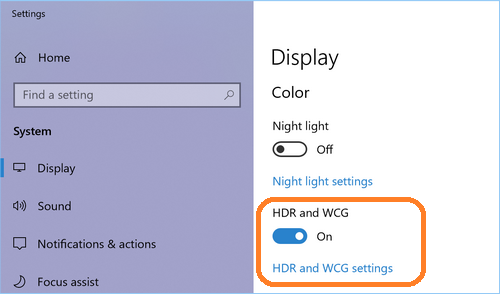
For mpv and VLC you have to turn on “Use HDR” or “Play HDR games and apps” or “HDR and WCG” (the name depends on the Windows version) switch in Windows Display settings first.
Playing HDR video on SDR display
Special colors processing called “HDR tone mapping” is required, otherwise the colors are washed-out.
In DirectShow video players, e.g. MPC-HC, only TWO renderers can do tone mapping: madVR or MPC Video Renderer.
If you can use Avisynth (Vapoursynth) Filter + MPC Video Renderer — just do it!
If for some reason you can’t use AviSynth (Vapoursynth) Filter + MPC VR/madVR then there’s a compatibility option — an SVP’s own tone mapping implementation. It’s much simpler but at least it makes HDR movies watchable. SVP menu → Application settings → Additional options → Try to recover HDR colors is on by default so it must work “out of the box”.
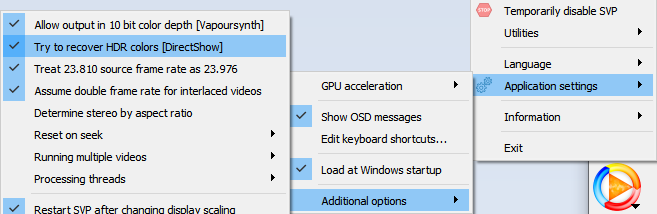
This isn’t the true HDR tone mapping but it’s the best we could do to fix the situation.
mpv has a lot of options for tone mapping and it also supports 10-bit video so it produces much more accurate image than any DirectShow player with SVP’s “color recovery”. But it also needs significantly more CPU power, especially in 10-bit colors mode (see SVP menu → Application settings → Additional options → Allow output in 10-bit color depth).
This applies to all mpv-based players: Plex Media Player, IINA, etc.
VLC does tone mapping automatically, BUT only in Direct3D11 video output mode.
Note that if you run VLC from SVP’s menu, it’ll be switched to Direct3D9 mode by default, because D3D9 mode is much smoother. To override this set main.setup.vlc.d3d9 to ‘false’ in SVP’s ‘All settings’ panel.
Transcoding
For now you can only apply a tone mapping filter to a 10-bit HDR source and convert it into 8-bit SDR. There’re two options available:
- Fast SVP’s tone mapping (same as “Try to recover HDR colors” option) — enabled by default in all transcoding modes
- Slow but higher quality tone mapping via ffmpeg’s filter: switch to Advanced mode and choose the “tonemap” filter, it will add the following string into the lavfi field:
Also set depth to 8-bit. You can read more about tonemap filter options there.