
It depends on the app version:
- Google doesn’t allow this feature in Google Play, so SVPlayer installed from Google Play won’t open video URLs from video websites. However, there’s an additional APK you can install from our site – the SVPtube app – that will help 😉
- SVPlayer APK already has everything built-in.
SVPlayer uses ffmpeg’s dynaudnorm filter to do audio normalization. However, it has lots of advanced options if you don’t like how it sounds with the default values.
You can put any configuration you like into main.player.audio.norm.params (For nerds -> right, right), in the form of a single string with options separated by ‘:’. The default value is ‘f=75:g=25:p=0.55’.
This is a limitation of Android 11+: it only lets you browse “media files”, and .ass/.ssa are not “media” according to Google. You can still open them using the native file picker (green robot button).
For nerds -> right, right -> mpv.conf. Add something like this:
glsl-shader="/storage/emulated/0/shader.glsl"
(/sdcard/… path may not work here)
Same reason as above: Android 11+ only allows a few “media file” extensions, and mpv doesn’t care about extensions at all, so if you rename my-shader.glsl to my-shader.srt – it will work 😉
By default, SVPlayer uses the highest available screen resolution. In some cases you may want to override this: for example, Samsung Note20 supports 120 Hz at 1080p only, while 1440p is limited to 60 Hz. You can set the screen resolution from the Playback page.
You need a Plex token (also called “X-Plex-Token”) to connect to a Plex server from SVPlayer.
This ISN’T a password you’re using to sign in to Plex!
To get your Plex token:
- Open the Plex Web App in a web browser and sign in to your Plex account.
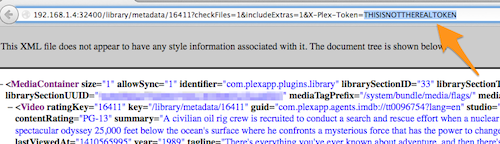
- On any library item, press the three dots button in the bottom corner, select Get info, and then click View XML.
- Look in the URL and find the token as the “X-Plex-Token” value. For simplicity, you can just copy the whole URL into SVPlayer – it will extract the token automatically.
You need an API key to connect to an Emby server from SVPlayer.
This ISN’T a password you’re using to sign in to Emby!
To get / create an API key:
- Open Emby in a web browser and sign in.
- Click the settings button, navigate to Advanced -> Api Keys.
- Either create a new API key, or use an existing one if you have any.
- An API key is a 32-character string; copy it into SVPlayer.
Full SVPlayer with frame rate conversion and SVPtube: 64-bit APK version only.
SVPlayer Lite 32-bit (w/o FRC and SVPtube): Google Play or APK.
Android TV boxes are VERY BAD and SLOW. They all have a 5+ years old low-end hardware in the best case. The short answer is: look for RK3588-based boxes, any other option won’t work any good.
It’s important that full SVPlayer with frame interpoaltion needs a 64-bit Android TV.
However there’s a special SVPlayer Lite edition for 32-bit Android TVs that lacks frame interpolation. Though it still can stream high frame rate video from a desktop SVP. Don’t expect much, most likely even this “Lite” version won’t work good on your TV.
Look at the WebUI, there’s plenty of stuff there 
You can watch 3D in side-by-side or over-under formats with SVPlayer. However, it may need a few extra settings in some cases.
For example, if you have a 1920*1600 video in over-under format (i.e. 2x 1920*800 frames):
- on the ‘Size & light’ panel: turn ON ‘Black bars lighting’, optionally set ‘Light intensity’ to the minimum value;
- set ‘Stretch to screen’ to ‘Always’;
- switch the TV to 3D mode