
We don’t have every phone and tablet on the planet in our hands. This is why you should try SVPlayer by yourself for free and decide if it works for you or not.
Apple A13 (e.g. iPhone 11) or better.
Apple TV 4K (2017 or later), but read the Apple TV section below.
No, you can’t. SVPlayer for iOS is only sold via the Apple App Store.
Yes, Apple TV 4K (2017 or later) is supported too – search for SVPlayer in the Apple TV App Store!

Technically, yes. But 120 Hz mode on iPhones isn’t really usable, because iPhone doesn’t maintain a stable 120 Hz: depending on current conditions, iOS version, and moon phase, it will silently switch to whatever frame rate it wants.
So you can forget about 120 Hz mode, at least with iOS 18. In fact, iOS 18 doesn’t even allow an app to switch to 120 Hz mode. Maybe this will change in the future.
However if you’re feeling lucky, there’s an advanced option ‘main.dev.allow_120Hz’, set it to ‘true’ and restart SVPlayer.
You need a direct link to the M3U8 stream. You can use 3rd-party software to extract a link, if you can find one 😀
You need a Plex token (also called “X-Plex-Token”) to connect to a Plex server from SVPlayer.
This ISN’T a password you’re using to sign in to Plex!
To get your Plex token:
- Open the Plex Web App in a web browser and sign in to your Plex account.
- On any library item, press the three dots button in the bottom corner, select Get info, and then click View XML.
- Look in the URL and find the token as the “X-Plex-Token” value. For simplicity, you can just copy the whole URL into SVPlayer – it will extract the token automatically.
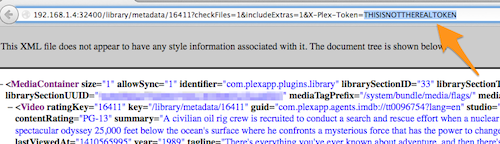
You need an API key to connect to an Emby server from SVPlayer.
This ISN’T a password you’re using to sign in to Emby!
To get / create an API key:
- Open Emby in a web browser and sign in.
- Click the settings button, navigate to Advanced -> Api Keys.
- Either create a new API key, or use an existing one if you have any.
- An API key is a 32-character string; copy it into SVPlayer.
SVPlayer uses ffmpeg’s dynaudnorm filter to do audio normalization. However, it has lots of advanced options if you don’t like how it sounds with the default values.
You can put any configuration you like into main.player.audio.norm.params (For nerds -> right, right), in the form of a single string with options separated by ‘:’. The default value is ‘f=75:g=25:p=0.55’.
Assuming you have a ‘shader.glsl’ file you want to apply:
- copy it into SVPlayer’s folder via Files (you may need to upload any video file through WebUI for this folder to appear in Files)
- For nerds -> right, right -> mpv.conf. Add this line:
glsl-shader=~/Documents/shader.glsl - restart SVPlayer
Yes. The good news is that an ATV subscription will also work in SVPlayer on iOS devices (iPhone/iPad), but not vice versa.
Ensure your ATV is cooled properly. Note that the ATV 3rd gen (2022) lacks active cooling, so it’s always overheating heavily.
Attaching passive radiators helps a lot:

Common performance tips:
- upscaling 60fps video to 4K is rather complicated, so it’s better to switch ATV’s output to 1080p mode.
- if you don’t want to switch to 1080p, then at least set “upscaling” to “bilinear” and turn off “deband”.
There are a few ways to lower CPU usage:
- on the “Frame rate” page move the performance/quality slider to the left, step by step;
- on the “Size and light” page set the “Decrease frame” to at least 1080p, or even to 720p;
- turn off the hardware decoder (the HW button), this may help in some cases.
SVPlayer can switch display refresh rate to match the content. For example, when FRC is off it will switch the display refresh rate to 24 Hz while playing 24 fps videos, and then switch it back to 60 Hz when FRC is on.
You must turn on Video and audio -> Match content -> Match frame rate in Apple TV’s Settings for this feature to work.
Note that this will also switch the display to non-HDR mode if Match dynamic range is set (as SVPlayer currently doesn’t support HDR output).
Look at the WebUI, there’s plenty of stuff there 😉
You can watch 3D in side-by-side or over-under formats with SVPlayer. However, it may need a few extra settings in some cases.
For example, if you have a 1920*1600 video in over-under format (i.e. 2x 1920*800 frames):
- on the ‘Size & light’ panel: turn ON ‘Black bars lighting’, optionally set ‘Light intensity’ to the minimum value;
- set ‘Stretch to screen’ to ‘Always’;
- switch the TV to 3D mode